Last updated November 13, 2026
A good client social media report shows results against the client's goals, the posts that drove those results and the plan for next month, and it goes out once a month. Cloud Campaign, a white-label social media management platform built for marketing agencies, builds that report in one click from each client's connected accounts and sends it under the agency's brand on the Team and Agency plans.
This guide covers what to put in the report, how to set up social media reporting for agencies step by step, and how to answer the questions clients ask most. Cloud Campaign is the worked example throughout.
What a client social media report should include
A client report should include the few metrics that match the client's goals, with a line on what each one means. The table lists the metrics most agencies report and where each number comes from.
| Metric | What it tells the client | Where it comes from |
|---|---|---|
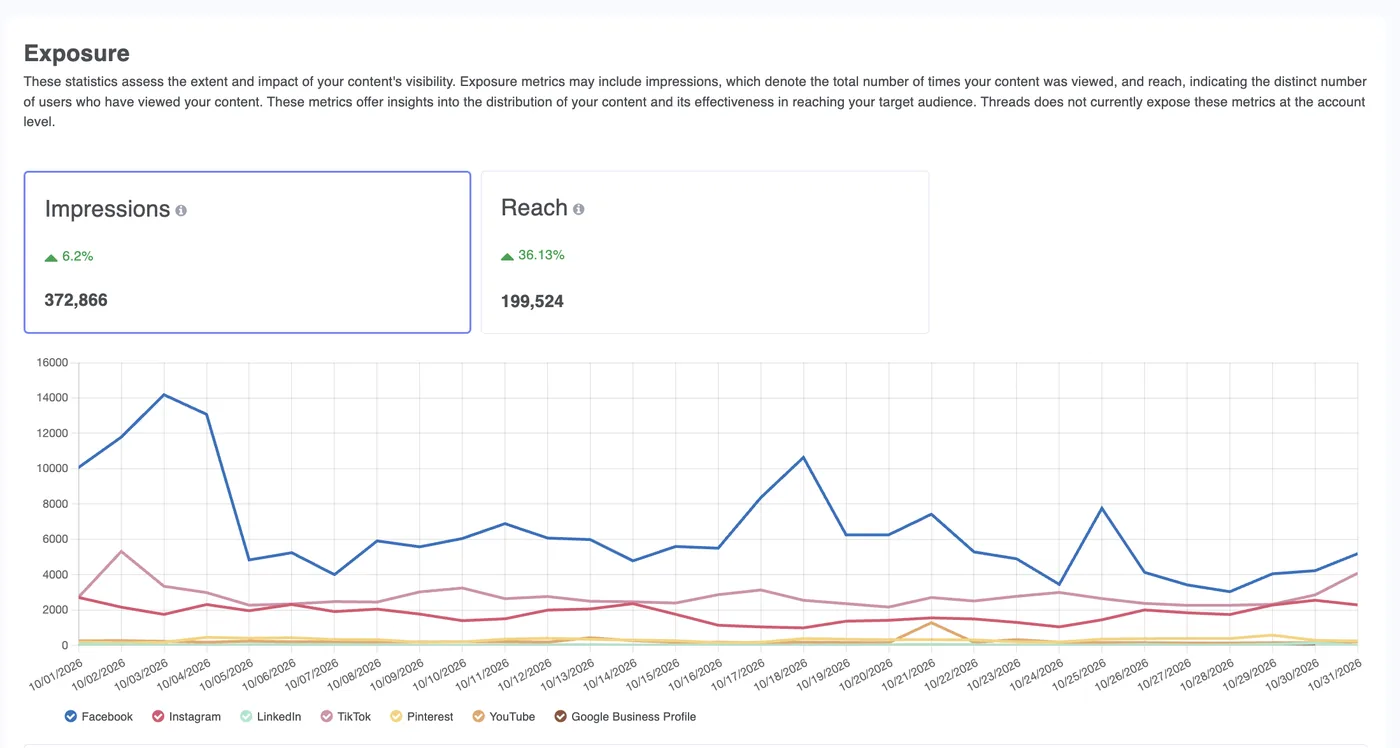
| Reach and impressions | How many people saw the content | Each network's analytics, through the connected account |
| Engagement rate | Whether the content held attention | Likes, comments, shares and saves, divided by reach or impressions |
| Follower growth | Whether the audience is growing | Each network's follower count over the period |
| Link clicks | Whether posts sent people to the website | Click data on each post |
| Top posts | Which topics and formats to repeat | Post-level results, ranked by engagement |
| Comments and messages | What customers ask about and say | The social inbox and each network's comments |
| Website sessions and conversions | Whether social traffic became leads or sales | Google Analytics |
| Paid social results | What the ad spend returned | The connected ad account |
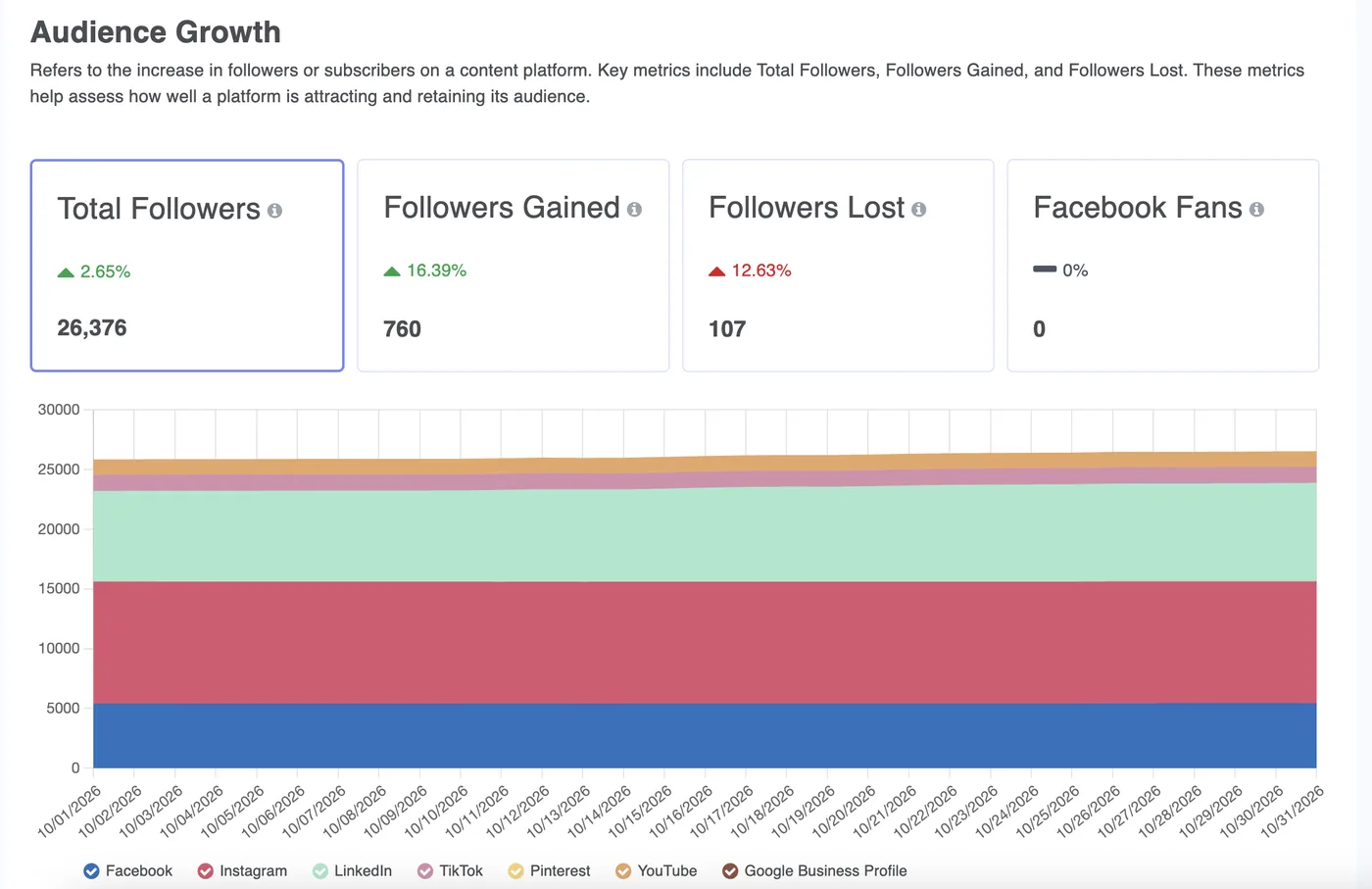
Open the report with three to five sentences on what happened and what you will do next. For a full section-by-section layout, see the social media report template for agencies.
How to set up client reporting, step by step
Client reporting takes seven steps to set up, and most of the work happens once. The steps below use Cloud Campaign as the example.
- Give each client a workspace. Create a workspace for the client and connect its social accounts. Each workspace keeps its own accounts, content, users and analytics, so one client's numbers never mix with another's.
- Set your agency's branding. Add your logo and colors once. On the Team and Agency plans, reports and client-facing screens carry your brand.
- Agree on goals and metrics. Pick the goal for each client, then the three or four metrics that show progress toward it. The answer on which social media KPIs agencies should report lists options by goal.
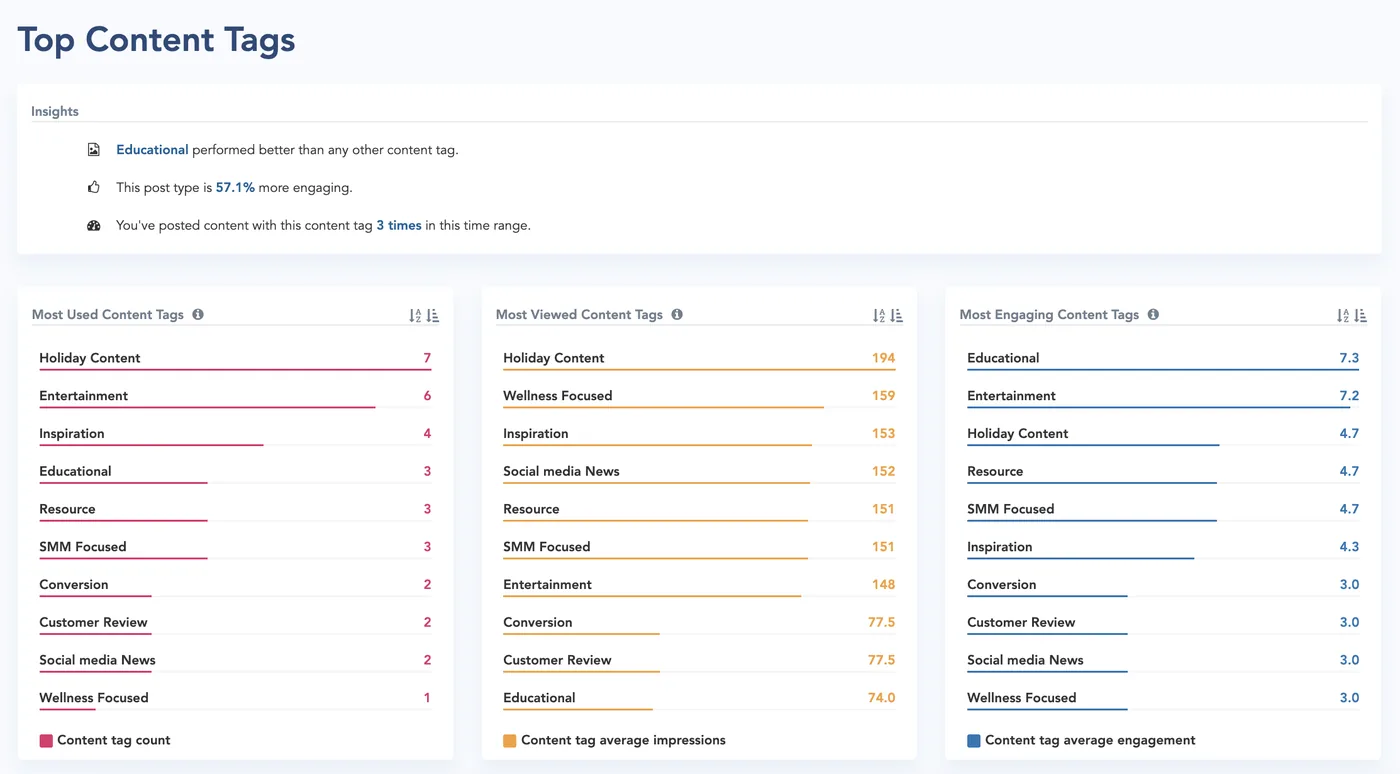
- Add content tags to posts. Tag each post by type, such as educational, entertainment or customer review. The Top Content Tags view then shows which types earn the most views and engagement.
- Create the report. Open Reports, select New Report, then add a title and a date range. Use Toggle Advanced to choose the sections and to include website analytics, then select Generate Report.
- Add your summary and share it. Write a few sentences on what the numbers mean. Copy the report link to share an interactive report that works on a phone, or download it as a PDF.
- Put it on a schedule. Set the report to send every week, month or quarter. From the Agency View, you can also generate reports for many client workspaces at once.
See the steps on a live account. Start your free 14-day trial of Cloud Campaign
How do you see which posts perform best?
Rank each client's posts by engagement rate for the period, then look for what the top five have in common. Compare by format, topic and network, since a strong Instagram post and a strong LinkedIn post rarely look alike. Repeat the patterns that win and drop the ones that stay at the bottom.
In Cloud Campaign, the Insights view in Analytics shows which types of posts work best for each social account. The Top Content Tags and Top Hashtags views rank each tag and hashtag by use, views and engagement, and Top Posts shows the strongest posts for the period.
How do you prove social media ROI to clients?
You prove social media ROI by tying social results to a goal the client already tracks, such as leads, bookings or sales. Measure what happens after the like: link clicks, website sessions, form fills, purchases and cost per result on paid posts. Set a baseline in the first month, then show the change against it.
In Cloud Campaign, you can connect Google Analytics to add website data to a report. The Agency plan adds paid social reporting, so organic and paid results sit in one client report. The answer on how to measure social media ROI for clients walks through the math.
How do you track Instagram, Facebook, and LinkedIn in one dashboard?
Connect each network to one tool that pulls the results into a single view. Check that the tool covers every network the client uses and that it shows both a combined total and a breakout for each account. Report totals for numbers that add up fairly, such as clicks, and compare rates side by side.
Cloud Campaign connects to eight networks: Facebook, Instagram, LinkedIn, TikTok, Pinterest, YouTube, Google Business Profile and Threads. Each client's connected accounts feed one social media analytics dashboard, with an overview across accounts and a view for each one.
How do you create branded social media reports for clients automatically?
Use a platform that builds the report from connected accounts, applies your brand and sends it on a schedule. In Cloud Campaign, it works in four steps.
- Set your logo and colors once. Reports are white-labeled on the Team and Agency plans.
- Create a report for the client's workspace and choose the date range and sections.
- Set the report to send every week, month or quarter.
- The client receives a branded report as a link or a PDF, and you add your summary.
The page on automated social media reports shows the feature, and the guide to white label reporting compares how five tools handle branded reports.
What to look for in a reporting tool
Check these features in any social media analytics report tool before you choose one.
- White-label reports. Your logo and colors on every report, and your brand on the screens clients see.
- Scheduled sending. Reports that go out on a set day without manual work.
- Networks covered. Every network your clients use, in one report.
- Client-by-client views. A separate workspace and report for each client.
- Paid and organic together. Ad results next to organic results for clients who run both.
- Cost as you grow. A price that stays reasonable as you add clients and team members.
How much time client reporting takes
Reporting time grows with every client when reports are built by hand, because each network keeps its numbers in its own dashboard. Automation changes the monthly work to a short review and a written summary for each client. Strategic America, a full-service digital agency, reclaimed more than three workdays every quarter by automating its insight reports in Cloud Campaign.
FAQ
What is a social media report?
A social media report is a summary of how a brand's social media accounts performed over a set period. It shows the main metrics, the top posts and what the team plans to do next. Agencies send one to each client, usually every month.
How often should you send social media reports to clients?
Send a report once a month. A month gives enough data to show a trend and fits how most clients plan and budget. Add a quarterly review call to look at the bigger picture and reset goals.
What is the difference between social media analytics and social media reporting?
Social media analytics is the data: reach, engagement, clicks and growth. Social media reporting turns that data into a short document that explains what happened and what comes next. Clients pay for the explanation, so the summary matters as much as the charts.
How do you measure social media ROI?
Subtract what the social media work cost from the value it returned, then divide by the cost. Value can be sales, leads or bookings that came from social posts. When a client does not track revenue, report the steps before it, such as link clicks and form fills.
What should a social media analytics report include?
Include a short summary, results by network, top posts, audience growth and next steps. Add website and paid results when they match the client's goals. Keep the same layout every month so trends are easy to see.
Can you white-label social media reports?
Yes. White-label reports carry your agency's logo and colors and leave the software vendor's name off the page. Cloud Campaign includes one-click reporting on every plan, white-labeled on the Team and Agency plans.
Can one report cover paid and organic social media?
Yes. A combined report shows ad results next to organic results, so the client sees one view of the channel. Cloud Campaign includes paid social reporting on the Agency plan.
Does Cloud Campaign include reporting on every plan?
Yes. Every Cloud Campaign plan includes analytics and one-click report generation. Reports are white-labeled on the Team and Agency plans, and the Agency plan adds paid social reporting.
Ready to send your first branded client report? Start your free 14-day trial of Cloud Campaign




Want 10 free social posts for your client or brand?
CloudStudio helps automate your social presence by turning your brand, website, and goals into ready-to-post content. Share your info and we’ll show you what it can create.